

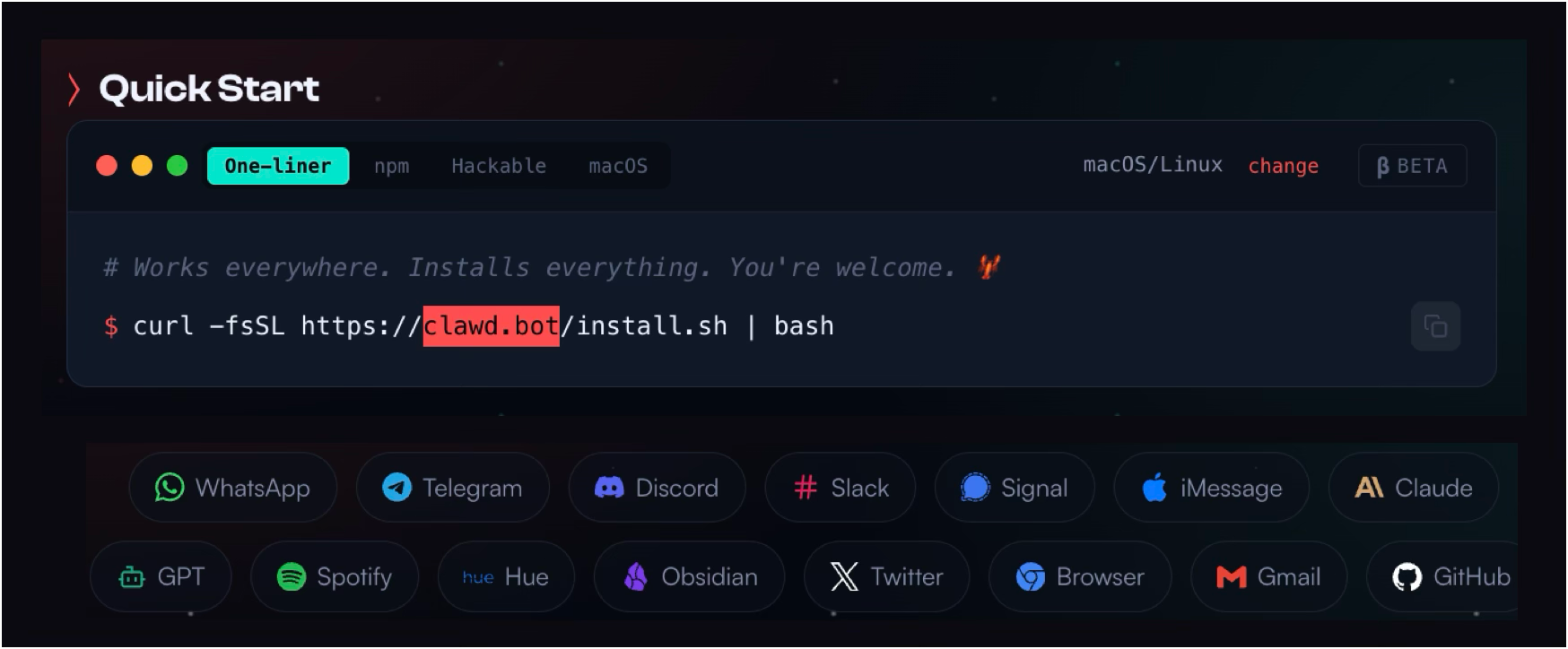
I didn’t hire but BUILD a new intern that works for me across my apps: Telegram, Emails, Browser, Discord, Twitter, Google Meetings and all other apps.
You will need a Mac mini (or read below for the FREE hack)… and installed an AI agent on it.
In this guide I will share how you can build it yourself for FREE + your own AI telegram bot
And when I tell you what I’m doing with it, you’ll understand why I’m starting to think this might become the best employee I’ve ever had.
It removes cognitive load, the constant mental clutter of “remember this,” “follow up on that,” “don’t forget that link,” “what were the action items again?”, the stuff that quietly drains your brain every day.
What I mean by cognitive load (in real life)
Cognitive load is the mental overhead of carrying open loops:
keeping track of half-finished ideas
remembering things you might need later
juggling meetings, follow-ups, and notes in your head
bookmarking things you never revisit
feeling like you’re always “behind,” even when you’re working
If you’ve ever thought, “I’ll come back to this later”… and then never did, you already know what I’m talking about.
So I built a system and AN INTERN where I don’t have to hold those loops anymore.
Why I’m so bullish on this
Because this is the first time AI can reduce my cognitive + work load.
it reduces my mental load (instead of adding more tools to manage)
it organizes my life into structured, reusable assets
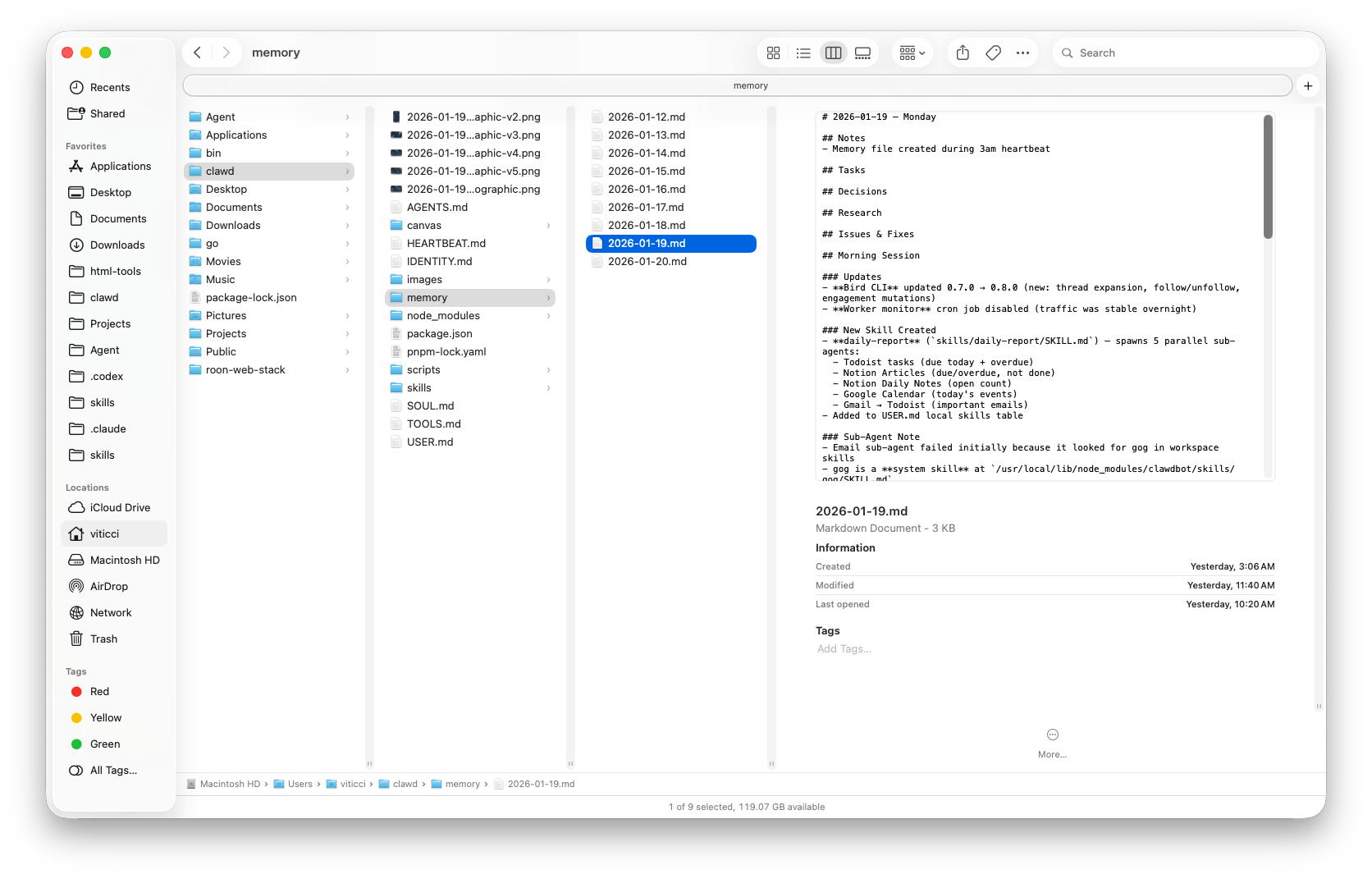
it remembers across time in a way that feels like a real assistant
it works inside my workflow (Telegram, group chats, files, scheduled jobs)
I don’t need to think.
I don’t need to remember.
When I have a thought, I dump it and it gets organized, scheduled, and stored.
That’s the dream.
And now it’s real.
Why is everyone talking about Clawdbot?


It’s an AI agent that can run locally, connect to my tools, and operate like a real helper:
I can talk to it from Telegram (even in group chats)
It can organize information into files (not just a messy “memory”)
It can run scheduled routines (like briefings and reminders)
It can do research, summarize, and build documents I can reference later
The setup I’m using is Clawdbot, and it’s open-source, meaning people are building features on top of it constantly, and I can keep upgrading what it can do over time.
Think of this AI being your teammate.
The $999 Mac mini myth (and the $0 AWS hack)
People keep buying hardware because they assume Clawdbot needs it. The truth is it doesn’t.
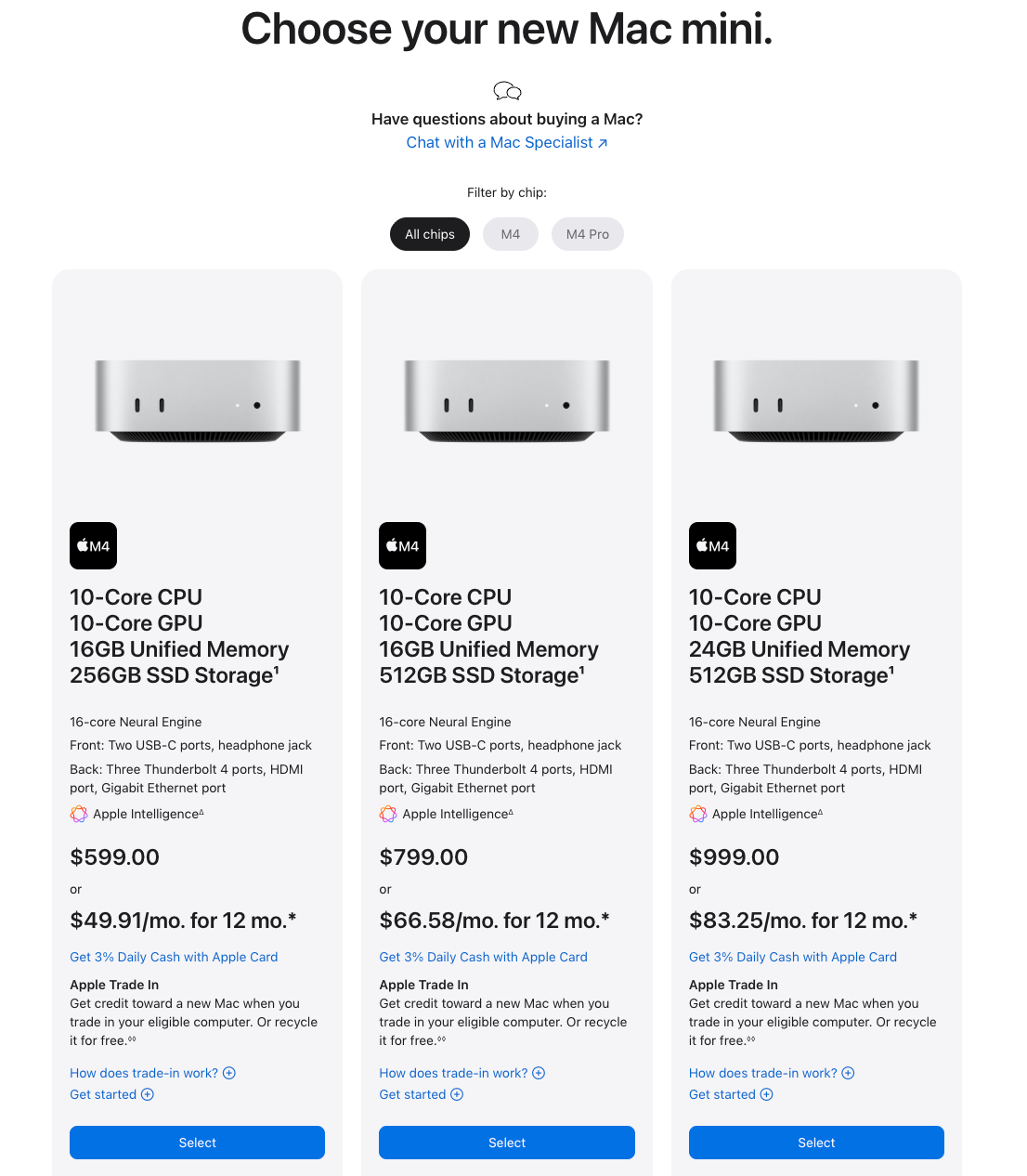
Clawdbot just needs something online 24/7.
That can be:
a spare computer you already own
a cheap VPS
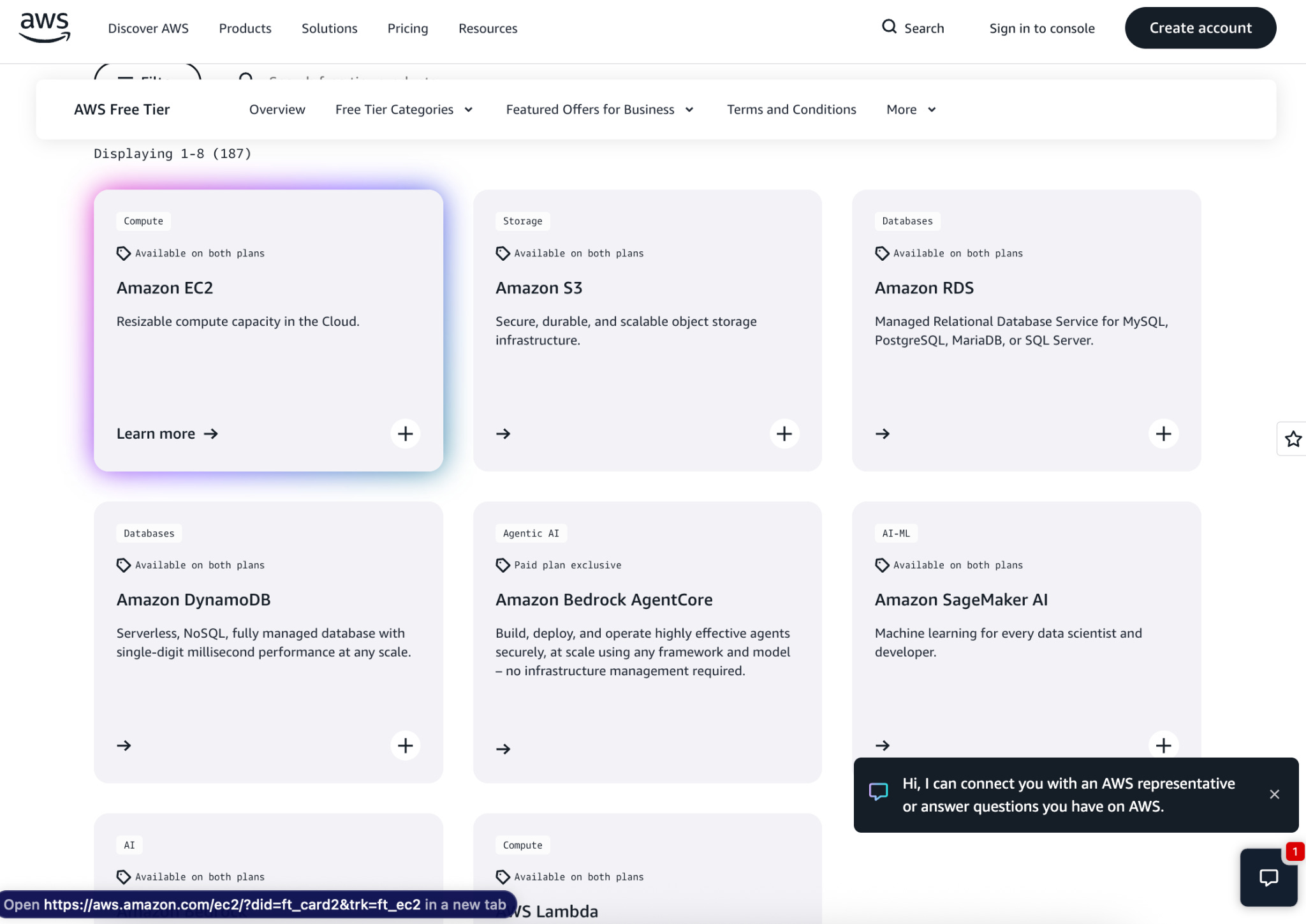
or an AWS Free Tier micro instance (good enough to run the gateway + your basic workflows)
AWS commonly offers Free Tier usage for micro instances (up to 750 hours/month within the Free Tier limits), but Free Tier terms can vary by account and start date, so you should rely on what your AWS billing dashboard shows and set alerts.


The ~15-minute setup (AWS Free Tier)
Step 1 — Launch a free server (5–10 min)
Create an AWS account (and enable billing alerts right away).
Go to EC2 → Launch instance
Pick Ubuntu
For instance type, choose a Free Tier eligible micro instance (commonly t2.micro or t3.micro, depending on region).
Create/select a key pair
Launch
Important: If you choose larger than micro, you can get billed.
Step 2 — Connect to the instance (1–2 min)
Open your instance → click Connect → use the browser-based terminal / SSH instructions.
You’ll see a terminal. Looks scary. It’s not.
Step 3 — Install Clawdbot (2 min)
Run the one-liner installer:
curl -fsSL https://clawd.bot/install.sh | bash
That installer is referenced by the Clawdbot repo docs as the standard path.
Step 4 — Run the setup wizard (10 min)
The wizard will walk you through:
choosing your model/provider
setting up your channel (Telegram is the easiest starting point)
pasting tokens/keys where needed
Clawdbot’s docs describe a config-based approach and safe defaults, but most people won’t need to touch config on day one.
Step 5 — Create your Telegram bot (5 min)
In Telegram, message @BotFather
/newbot
copy the bot token
paste into the wizard
Then lock it down by adding your user ID so only you can talk to it.
Step 6 — Give it an identity (3–5 min)
It’ll ask basics like:
what to call you
what to call it
timezone
its role (“assistant,” “ops,” “research,” etc.)
This matters more than people think. The assistant behaves better when you define the job.
The one chat that runs my workflow across 5 use cases
I have multiple chats set up:
one for personal use (yes, I gave it a terrible name)
one for specific projects
some in group chats with collaborators
And the key is: everything happens inside the chat, the output becomes structured, notes, files, lists, summaries, action items, even reports.
That difference changes everything.
Use case #1: Turning internet chaos into an organized library
This is the first thing that shocked me.
Normally, I’ll see something useful, a tool, a website, an idea, and I’ll either:
bookmark it (and never read it again), or
tell myself remember this, and forget it later on
Now I just send it to the agent.
Example: I found a site that helps you generate a mascot for a project.
Old me: scroll, think that its cool and then forget forever.
New me: send it to my agent and tell it to save it under the right category.
Use case #2: Summarize + save good content automatically
Here’s the workflow I use constantly:
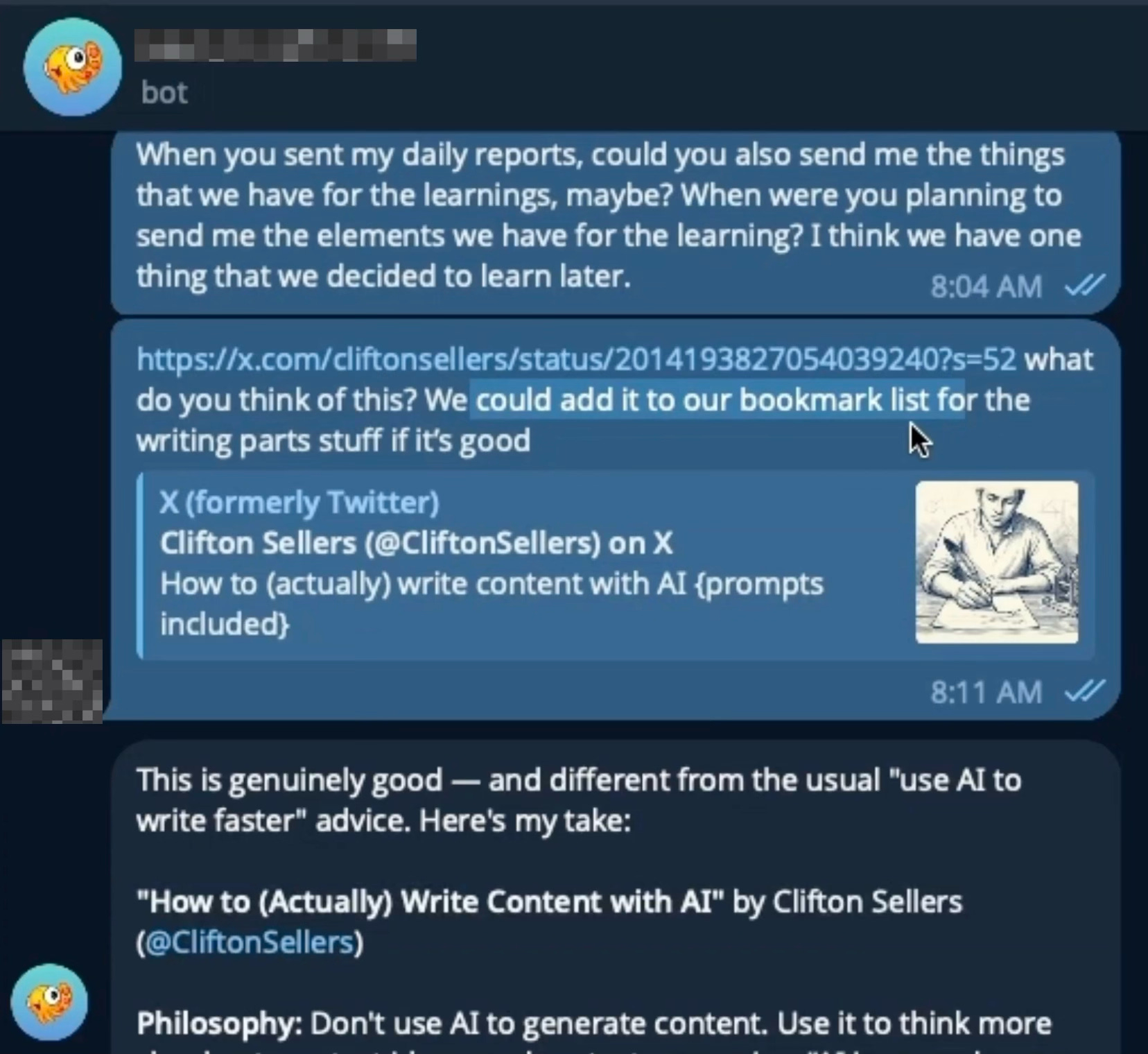
I drop an article or post (even an X/Twitter link)
I ask: Summarize it, and if it’s good, save it to my notes
It reads it, extracts the key prompts/insights, and asks where to store it
Instead of me hoarding tabs and bookmarks, it becomes:
summarized
structured
searchable later
stored under the correct project/topic
That alone is worth it.
Because I’m a data hoarder by nature, I tend to collect information but don’t sort it.
This sorts it for me.
It is even capable of running businesses in real time.


Use case #3: What are we working on again? (instant project recall)
I’ll be talking with my business partner, and instead of scrolling through weeks of messages, I just ask:
What are our active projects?
What are the next action items for our next meeting?
What are the things I said I’d follow up on?
And it responds with a structured list.
So I don’t have to remember everything.
I just dump thoughts as they happen, and it keeps track.


Use case #4: Deep research → delivered as a full report (without me doing the work)
At one point I saw a tweet about AI storage and decided: “Do a full deep-dive. I want a report I can read later.”
So I asked the agent to do it.
It produced a full report-style output: an executive summary, tickers, trends, company-by-company analysis. The kind of research you’d normally pay a lot of money for.
The part that matters isn’t just the report, it’s that the report lives inside my system now.
So later, when I’m doing weekend investment review, I can ask:
What research do we have in the backlog?
Which names did we shortlist?
What were the sources and conclusions?
And it can pull it up instantly.
Use case #5: Scheduled routines so I stop remembering
This is where the cognitive load reduction.
The agent can run scheduled jobs (cron / scheduler style), like:
a morning calendar briefing
reminders (flights, meetings, tasks)
daily learning lessons from a long guide I don’t have time to finish
The loop closes automatically.
The real unlock: it keeps improving
This isn’t a fixed tool.
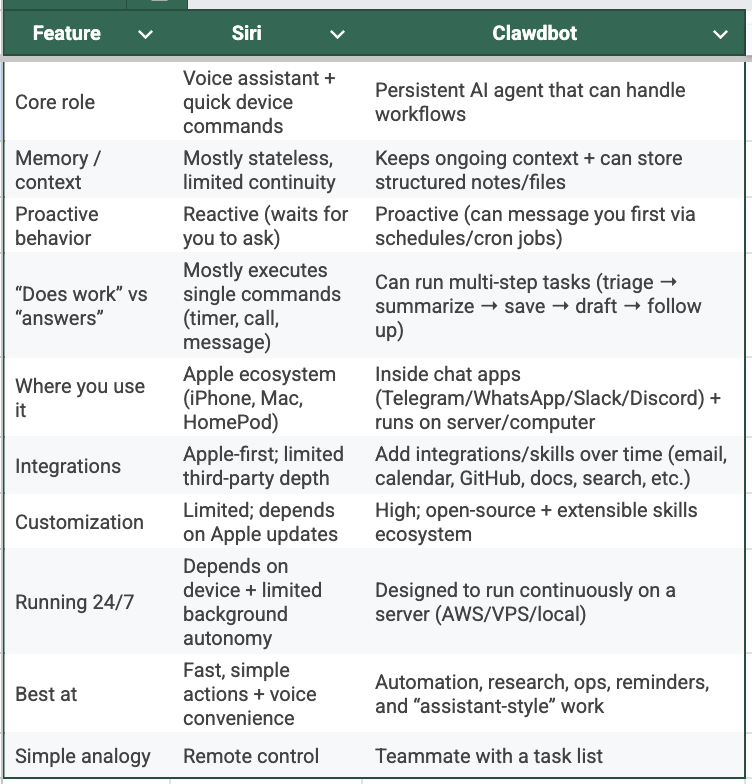
Because it’s built with skills and integrations, it can expand into basically anything:
calendar tools
Slack / Trello / Notion / Google Workspace
notes + reminders
browser control
research + summarization
writing + planning
coding support
file creation (docs, PDFs, structured notes)
And because it’s open-source, the ecosystem grows.
I’m investing in an INTERN that keeps getting better.
The warning because this can be dangerous
If an agent can control your browser and has system access, you need to treat it seriously.
Permissions, Security matter.
You should set it up carefully, use only what you trust, and avoid giving full access unless you understand what you’re doing.
The upside is enormous.

Great practical guide! For anyone following this setup, I wanted to add some context on what you're getting into.
I researched Clawdbot extensively - reading Hacker News threads, security audits, and power user reports. The reality check: one user spent $300+ in 2 days on "fairly basic tasks." Federico Viticci burned 180M tokens in his first week. Security researchers found 512 findings including 8 critical vulnerabilities.
That said, the capabilities are genuinely impressive. Voice integration, multi-platform messaging, self-improving skills.
What I found most valuable was understanding the tradeoffs. I ended up building my own version (Wiz) using Claude Code.
Full comparison: https://thoughts.jock.pl/p/clawdbot-deep-dive-personal-ai-assistant-2026